Syncing a project
A synced project is a folder on each machine that opens it, kept in step through the service. The folder keeps its path and its shape: nothing the service needs is written into a file the project shares, and what joins the folder to the online project is kept in its local files, never synced or committed.
Turn on sync
Section titled “Turn on sync”The sync widget sits at the right end of the command center in every project. In a project that is not online it reads Local only; click it, then Turn on sync, which signs you in first if no account is.
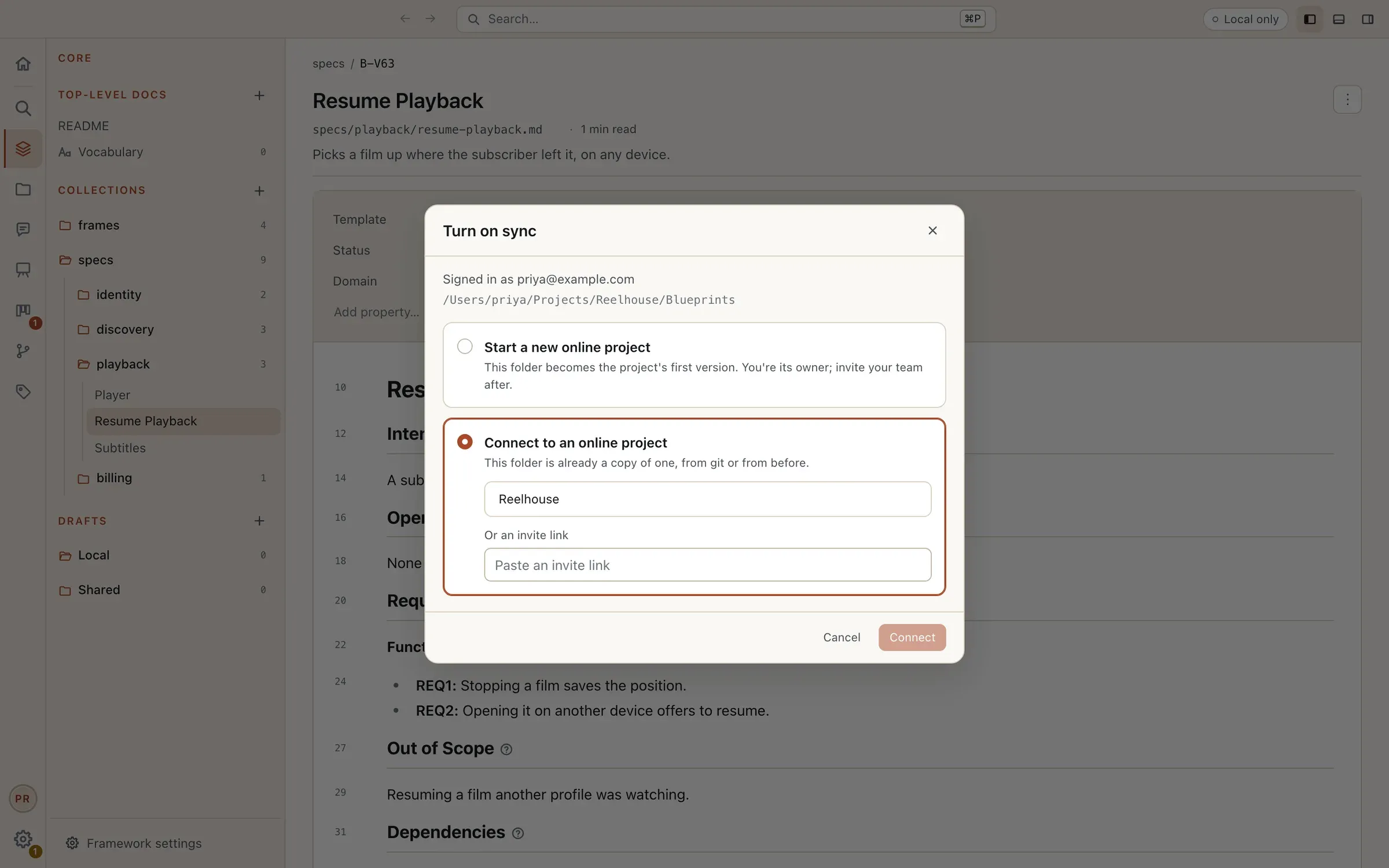
The dialog names the account and the folder, and asks which it is:
- Start a new online project puts the project online from this folder. Every file in it is the online project’s first version, you are its owner, and no file is rewritten. Give it a Name and Start syncing, then invite your team.
- Connect to an online project is for a folder that is already a copy of one: a git clone, or a copy from before. Pick the project from the account’s list, or paste an invite link under Or an invite link, and Connect. What is only online fills in, and what differs merges as an offline change does. A file that differed when the folder joined is kept aside in its local folder too, listed in the widget’s popover under Kept aside, so nothing of yours is lost.
Join a project from the Launcher
Section titled “Join a project from the Launcher”Join Online Project… sits in the Launcher beside Open Folder… and New Project…, and in the File menu. It signs in when no account is, lists the online projects each account can reach that are not on this machine yet, and takes an invite link instead.
Then it asks for the folder. By default it is a new folder named for the project, filled with what is shared with you. A folder that is already a copy of the project is connected instead, as Connect does. A folder that holds other files, or one inside another project, is refused with what to choose instead. The folder then opens as the project, synced.
What syncs
Section titled “What syncs”Every file of the project’s folder syncs: the blueprints, the docs, the drafts, the framework, the Backlog’s tasks, the canvases, the comment threads, the records, the assets, and the plugins’ shared settings. Your own files never reach anyone else: me.md, and each plugin’s local.yaml and local/ folder. Neither do .git or node_modules.
A change syncs however it was made: in the page, by an eidos command, by an agent, or by a git checkout. A change made while the app was closed syncs the next time the app opens the project. Versions stay git’s: sync neither makes nor needs a commit, and the Git plugin and eidos git version work as they always have.
The sync widget
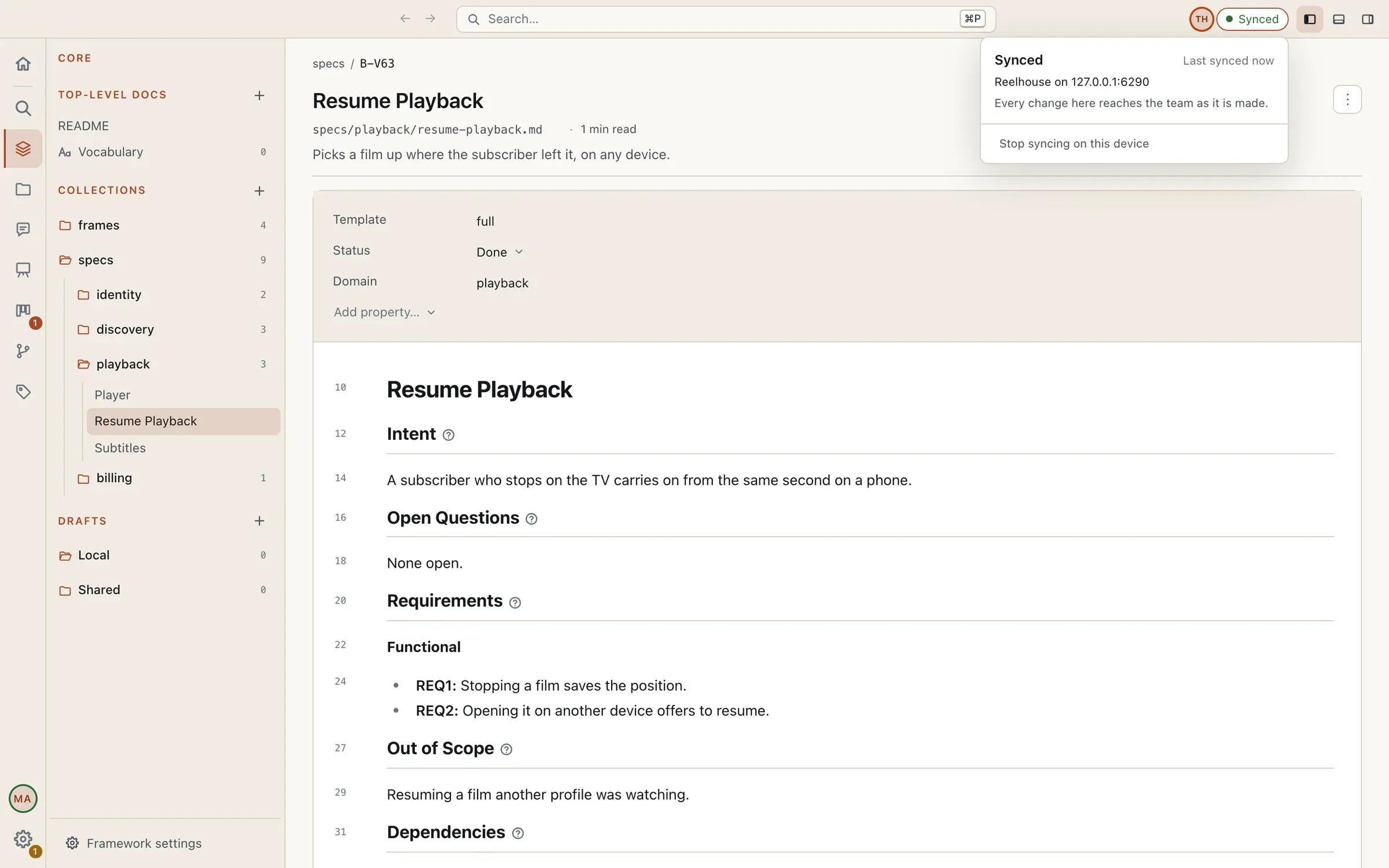
Section titled “The sync widget”The widget always says where the project stands. A click opens its popover, which is about sync alone: the project and the server it is on, when it last synced, what is waiting, and Stop syncing on this device.
| The widget says | What it means |
|---|---|
| Local only | The project is not online. The popover offers Turn on sync. |
| Synced | Every change here reaches the team as it is made. |
| Syncing… | Sending and receiving changes. |
| Offline · 3 changes waiting | The service can’t be reached. You keep working; the changes made here are listed in the popover under Waiting to sync and send when you reconnect. |
| … · 3 waiting for a seat | You edit this project without a seat it takes. Your changes wait on this machine and send once you hold a seat or the owner covers you. The popover offers Start a free trial (when you have not had one) and Get a seat. See Plans and pricing. |
| Sync paused · Sign in again | You are signed out of the server. Sign in to pick up where you left off. |
| Sync paused · signed out from another device | This device was signed out from another one, or by a fourth sign-in. Its changes stay here and send when you sign in again. |
| Sync paused · Access removed | The account is no longer a member of the project. The folder stays as it is. |
| Sync paused · Refused | The server refused this project. Try again later, or stop syncing here. |
| Paused by Eidos | Eidos online has paused sync for a while, for maintenance or an incident. Your changes are kept here and send once it resumes. |
When a change is one you may not make (a file in a part you can view but not change), the server refuses it: a toast says Change not saved, the file goes back to what the project has, and your edit is kept aside, listed in the popover under Not saved online.
Working offline
Section titled “Working offline”Offline is ordinary. The page and the commands keep working on the folder, the widget counts the changes waiting, and nothing is lost if the app quits or the machine restarts meanwhile: the changes are sent when the app next connects.
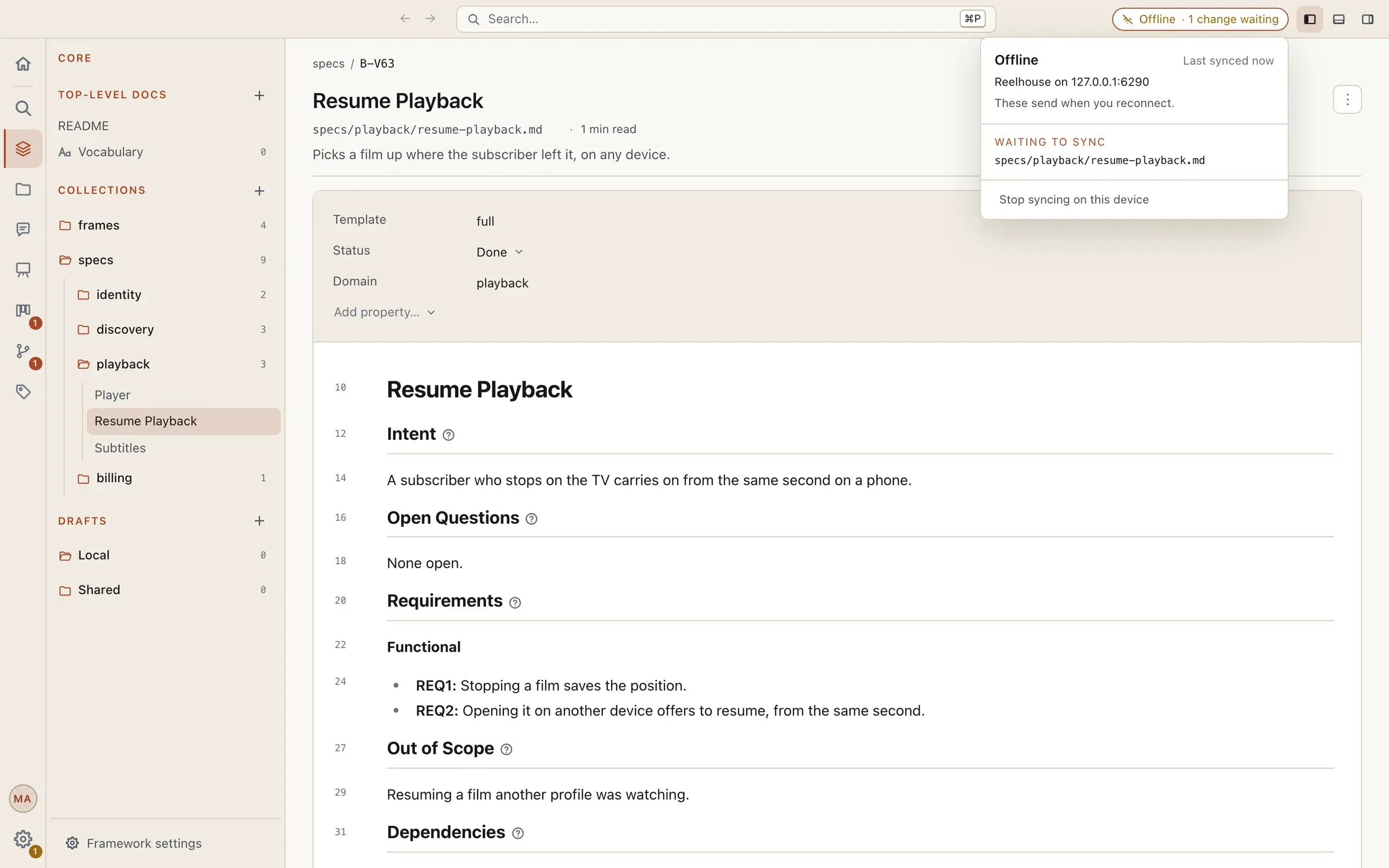
The app reconnects on its own, backing off a little longer each time and with a little randomness, so a server that comes back is not met by every machine at once. On reconnecting, both sides’ changes merge word by word with nothing to confirm.
Stop syncing on this device
Section titled “Stop syncing on this device”Stop syncing on this device, at the foot of the popover, leaves the folder as it is and makes it local only on this machine. The project stays online for everyone else.
History
Section titled “History”In a synced project, the Auxiliary Sidebar has a History view: the open file’s changes online, grouped into sessions by person and time (_theo@example.com · 2 edits · 1 hour ago_).
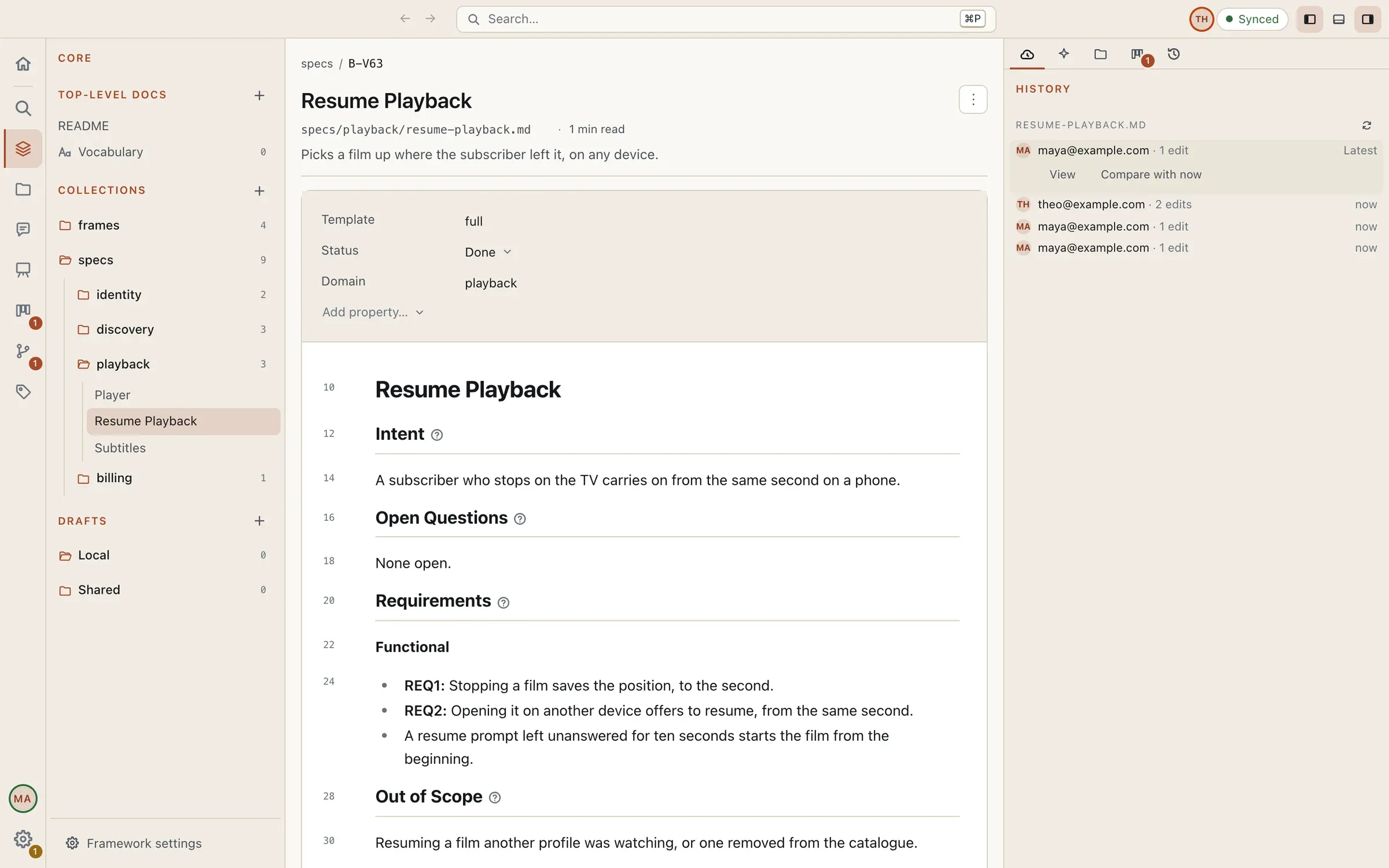
Click a session for View, the file read-only as it was at that point, and Compare with now, the change since then line by line. Restore this version puts the file back to that point as a new change everyone receives; what the file holds now stays in its history.
Under the sessions, Deleted files lists the files taken out of the project, each with who deleted it and when, and Put back restores one in every member’s folder.
History is the service’s record of the edits, not a version: for named versions, use git as before.