Self-hosting
The service behind Eidos online also runs on your own server, for a team that keeps its product’s definition in its own hands. A project on it works as it does on Eidos online: syncing, members, levels, and invites, and history. Its files, history, and accounts live on your server alone, and its members sign in with its own accounts, never with Eidos online.
What you need
Section titled “What you need”- A machine your team can reach, macOS or Linux, with Node.js 22.5 or later and pnpm 11.
- git, and access to the Eidos MD source.
- For anything past a trial on one network, a domain name and a reverse proxy that serves HTTPS (below).
- Disk for your projects. There is no storage limit but your own.
Each person still uses the desktop app; the server is only where their projects meet.
Build and run it
Section titled “Build and run it”Get the source, install the service’s dependencies, and build it:
git clone https://gitlab.com/the-virtual-panda/eidosmd.gitcd eidosmdpnpm install --frozen-lockfile --filter @eidosmd/service...pnpm --filter @eidosmd/service buildStart it with a folder for its data and the email of its owner:
node service/dist/src/serve.js --data ./eidos-data --owner you@example.com --print-codesThe owner is the person who runs the server and holds its licence. The server needs --owner at its first start, and remembers it; start it again with another email and the owner changes. The owner signs in to the server like anyone else, with that email.
It answers with where it keeps its data and where it listens:
eidos service: /home/eidos/eidos-data http://127.0.0.1:6280 (sign-in at http://127.0.0.1:6280/api/auth)On Node 22 it also prints an ExperimentalWarning about SQLite, which the accounts are kept in. It is harmless.
When someone signs in, their code appears in the same output:
sign-in code for maya@example.com: 196907Pass it on to them, and they type it into the app’s sign-in dialog as they would a code from an email. Ctrl+C, or a SIGTERM from whatever runs it, stops the server and closes every app’s connection; each app keeps its changes and sends them when the server is back.
Configuration
Section titled “Configuration”| Option | What it does |
|---|---|
--data <folder> |
Required. The folder the server keeps everything in. It is made if it doesn’t exist. |
--owner <email> |
The email of the account that runs the server and holds its licence. Required at the first start; given later, it changes the owner. |
--port <n>, -p <n> |
The port to listen on. 6280 by default. The server listens on every network interface, so keep the port behind a firewall when a proxy serves it. |
--url <address> |
The address people reach the server at, such as https://eidos.example.com. By default http://127.0.0.1:<port>. Behind a proxy this must be the proxy’s address: sign-in checks that requests come from it, and refuses them otherwise. |
--print-codes |
Print each sign-in code in the server’s output. Required for now, since the server has no mail yet. |
--web-origin <origin> |
Trust another origin a browser signs in from, such as an account site you host. Repeat it for several. Most servers don’t need it. |
--licence-file <file> |
A file holding the server’s licence key. The key can also come from the EIDOS_LICENCE environment variable, or be saved on This server in the app. See the licence. |
--database <address> |
Keep the accounts, projects, and history in PostgreSQL, postgres://user:password@host/database, instead of the data folder. Or EIDOS_DATABASE_URL. See Storage. |
--assets <where> |
Keep asset files in a folder of your choosing, an S3-compatible bucket (s3://bucket), or an Azure Blob Storage container (azure://account/container), instead of the data folder. Or EIDOS_ASSETS_URL. See Storage. |
The secret. Sessions are signed with a secret. Set it in the EIDOS_SERVICE_SECRET environment variable, or leave that unset and the server makes one on its first start and keeps it in secret in the data folder, readable only by the user it runs as. Keep it: a server started with a different secret signs every device out, and each says Sync paused until its person signs in again.
Apple and Google. The sign-in offers Continue with Apple and Continue with Google once their keys are in the server’s environment, and email codes alone until then. For Google, set EIDOS_GOOGLE_CLIENT_ID and EIDOS_GOOGLE_CLIENT_SECRET from a web client in Google Cloud whose redirect URI is <url>/api/auth/callback/google. For Apple, set EIDOS_APPLE_CLIENT_ID (a Services ID), EIDOS_APPLE_TEAM_ID, EIDOS_APPLE_KEY_ID, and EIDOS_APPLE_PRIVATE_KEY (the text of the Sign in with Apple key’s .p8 file), with <url>/api/auth/callback/apple as the Services ID’s return URL; Apple takes only an HTTPS address. The server signs Apple’s client secret from the key itself, so it never needs renewing. An address used with Apple or Google and by email is one account.
The data folder holds:
accounts.sqlite |
The accounts and their sessions. |
projects/ |
One folder per project: its files’ live documents, its history, its members, and its invites. |
secret |
The session secret, when it is not set in the environment. |
server.json |
The server’s owner, the id it made for itself at its first start, its licence key, and the last answer to its licence check. Readable only by the user it runs as. |
Storage
Section titled “Storage”By default the server keeps everything in its data folder: accounts in a SQLite file, projects and their history as files, and asset files under blobs/. That is all a server on one machine needs. For a company’s server, it can keep them in your own infrastructure instead, each part chosen on its own:
| What | Where | How |
|---|---|---|
| Accounts, projects, history, plans, and the licence’s state | The data folder (SQLite and files) | the default |
| PostgreSQL | --database postgres://user:password@host/database |
|
| Asset files (images, PDFs) | The data folder | the default |
| Any folder, such as a mounted network share or Azure Files | --assets /srv/eidos-assets |
|
| An S3-compatible bucket: Amazon S3, Cloudflare R2, MinIO | --assets s3://bucket[/prefix] |
|
| An Azure Blob Storage container | --assets azure://account/container[/prefix] |
PostgreSQL with the asset files on the server’s own disk:
EIDOS_SERVICE_SECRET=… node service/dist/src/serve.js --data ./eidos-data --owner you@example.com --url https://eidos.example.com --print-codes \ --database postgres://eidos:…@db.example.com/eidos --assets /srv/eidos-assetsThe server makes its own tables in the database, beside the accounts’ tables, the first time it starts. Give it a database of its own.
An S3 bucket takes AWS_ACCESS_KEY_ID, AWS_SECRET_ACCESS_KEY, and AWS_REGION (us-east-1 unless set) from the environment, and EIDOS_S3_ENDPOINT for a store other than Amazon’s, such as https://<account>.r2.cloudflarestorage.com. The keys need to read, write, and delete objects in the bucket.
An Azure container takes EIDOS_AZURE_SAS, a shared access signature for the container (or the account) with read, write, and delete. Make one in the Azure portal under the storage account’s Shared access signature, or with az storage container generate-sas, and give it a long expiry: the server stops being able to read and write its assets the day it expires.
As it starts, the server checks each store by writing a small file and taking it out again. A database it cannot reach, or keys that cannot write, stop it there, with a message naming the store and the reason. It never prints a password or a key, and This server in the app says where each part is kept.
With the records in PostgreSQL and the assets in a bucket or a container, the server keeps nothing on its own disk that a backup needs. Set the secret with EIDOS_SERVICE_SECRET, and --data can be left out; a new machine started with the same database, assets, and secret is the same server, its accounts, projects, and licence included. A server is still one process: run one at a time against a database.
HTTPS and a reverse proxy
Section titled “HTTPS and a reverse proxy”The server speaks plain HTTP. Put it behind a reverse proxy that serves HTTPS, passes WebSocket connections through, and forwards to the server’s port, and start the server with --url set to the address people use.
node service/dist/src/serve.js --data ./eidos-data --owner you@example.com --url https://eidos.example.com --print-codesWith Caddy, which fetches and renews the certificate on its own and passes WebSockets through by default, the whole Caddyfile is:
eidos.example.com { reverse_proxy 127.0.0.1:6280}With nginx, the WebSocket headers and a long read timeout are what matter; the certificate is yours to provide:
server {    listen 443 ssl;    server_name eidos.example.com;    ssl_certificate     /etc/ssl/eidos.example.com/fullchain.pem;    ssl_certificate_key /etc/ssl/eidos.example.com/privkey.pem;
    client_max_body_size 100m;
    location / {        proxy_pass http://127.0.0.1:6280;        proxy_http_version 1.1;        proxy_set_header Upgrade $http_upgrade;        proxy_set_header Connection "upgrade";        proxy_set_header Host $host;        proxy_set_header X-Forwarded-For $proxy_add_x_forwarded_for;        proxy_set_header X-Forwarded-Proto $scheme;        proxy_read_timeout 1h;    }}
client_max_body_size is how large an asset file, an image or a PDF, the proxy lets through. Serve the server at the root of its host name: an address with a path after it, such as https://example.com/eidos, is not supported.
Point the app at your server
Section titled “Point the app at your server”In the desktop app, open the sign-in dialog (Sign in in the account menu at the foot of the Activity Bar, or Add an account when you are already signed in), then Use a self-hosted server, and type the server’s address.
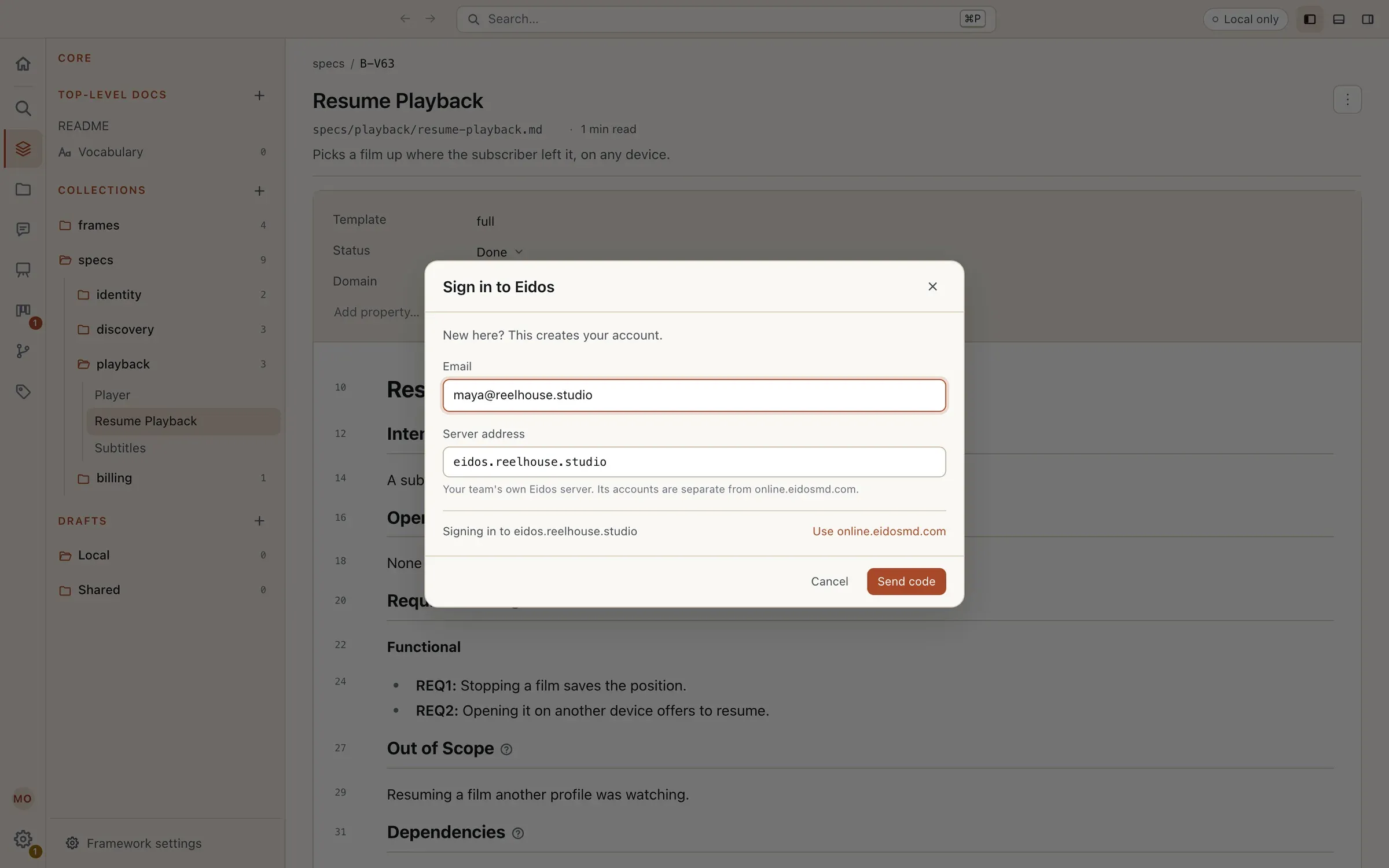
A bare host name, eidos.example.com, is reached over HTTPS; localhost and 127.0.0.1 over HTTP. For a trial on your own network without HTTPS, type the whole address, http://192.168.1.20:6280, and start the server with the same --url. The account is the server’s own, separate from any on Eidos online, and the app holds both side by side.
From there everything works as on Eidos online: the first person to turn on sync for a folder owns the project and invites the rest, whose links point at your server.
Backups
Section titled “Backups”Everything the server holds is in its data folder, unless it keeps it in PostgreSQL or a bucket (Storage): then back up the database and the bucket with their own tools, and the secret beside them. For the data folder: To back it up, stop the server, copy the folder (with secret, or note EIDOS_SERVICE_SECRET beside it), and start it again. While it is stopped, people keep working and their changes wait on their machines; they send once it is back.
To restore, stop the server, put the copied folder back in place of the data folder, and start it with the same secret. Changes made on people’s machines since the copy are sent again as each app reconnects. Each member’s folder is also a full copy of what is shared with them.
Upgrades
Section titled “Upgrades”In the checkout, take the new source, build it, and restart the server:
git pullpnpm install --frozen-lockfile --filter @eidosmd/service...pnpm --filter @eidosmd/service buildThen restart it. The accounts database brings its own tables up to date when the server starts. Keep the server and your team’s desktop apps on releases from the same time: which versions of the app each server works with is not written down yet.
The licence
Section titled “The licence”Up to three editors, a server is free, with no licence and no Eidos account. Its viewers and commenters are free and unlimited, and so are agents, which work with the access of the person they act for. An editor is anyone who can edit at least one of the server’s projects, counted once however many they edit, the owner too when they edit.
From a fourth editor, a licence covers every editor, not only the ones past three: a team of four needs four seats, and ten seats cover ten editors.
Past what the server covers (a fourth editor with no licence, more editors than seats, or 30 days without an answer from Eidos), the editors made most recently wait, as a lapsed seat does on Eidos online: they keep editing on their own machines, their changes wait there, counted in the sync widget, and they read and comment as before. Nothing is locked or removed, and their changes send once the server covers them.
This server, in the desktop app’s Settings, is the owner’s page for all of it, shown while they are signed in to the server: the licence (Licensed for 10 editors, or Free, three editors), the key, when the server last checked, and its editors, how many are covered, and Change to choose who is. With four editors and no licence it says so: four editors, three of them free, so the server needs four seats, and until then the editors made most recently wait.
Buying a licence
Section titled “Buying a licence”A licence is a seat for every editor of one server, at the price of an Eidos online seat: $4.99 a month or $49.90 a year each, so four seats are $19.96 a month or $199.60 a year, and ten are $49.90 a month or $499.00 a year. It is bought with License a server, under Servers in Plan and billing on your account’s site (License this server on This server opens it), starting at four seats, since three or fewer cover nothing a server doesn’t have free. Changing a server’s seats later steps from four straight to none, which ends the licence: the server is free for three editors again, and nothing is removed. The licence key, which starts with eidos_srv_, is shown once when the seats are bought, with Copy. On Servers, Change seats changes them, Make a new key replaces the key (the old one goes on for its 30 days), and Release frees the key from the server holding it, for a server taken down.
Give the server its key on This server (Licence key, then Save, which checks it at once), or with --licence-file <file> or the EIDOS_LICENCE environment variable when it starts.
What the server tells Eidos
Section titled “What the server tells Eidos”The server checks its licence when it starts, once a day, on Check now, and when its count of editors crosses what it covers. A check sends the key, the server’s own id, a one-time number, and how many editors it counts: never a project, a file, or a member. A server with no key sends nothing at all.
When Eidos can’t be reached, the server goes on with its last answer for 30 days, and This server says until when. After 30 days unanswered it goes back to three free editors, removing nothing, until an answer covers everyone again. A key already in use on another server offers Move it here; a key that was replaced goes on until its 30 days end, and a licence that ended takes the server back to three free editors.
A licence by agreement
Section titled “A licence by agreement”A company with an agreement with Eidos may be given a licence instead of buying seats: it covers every editor, has no end date, and is never billed. Only Eidos issues one. It is a key, like a bought one, starting with eidos_srv_, and it is listed under Servers on the account it is granted to, marked By agreement. Give it to the server the same way: paste it on This server and Save, or start the server with --licence-file <file> or EIDOS_LICENCE. This server then reads Licensed by agreement · unlimited editors, with who it is granted to.
It is checked like any licence, once a day, sending the same few things, so the server must reach online.eidosmd.com to take it. After that, Eidos not answering never ends it: the server goes on with it however long the check goes unanswered. Keep the key as you would any secret: anyone holding it can move the licence to their own server.
Testing against staging
Section titled “Testing against staging”For Eidos contributors, never for a team’s own server: a server can be checked against Eidos’s staging service, whose answers are signed by a test key no release trusts. Start it with --licence-service https://online-staging.eidosmd.com --trust-key eidos-staging-1=bxl5sumIh6dS9EkTok18mLz_hIvyzE1ppdRsDQUiM2k (or EIDOS_TRUST_KEYS), and it says as it starts that it is trusting a test licence key. Without those options a server trusts Eidos’s own key alone.