Eidos online
Eidos online keeps a project in step across machines. Sign in from the desktop app, turn on sync, and the folder you already work in becomes a synced copy of a project the service keeps: what you or a teammate changes reaches everyone who has it open, as it is made. The folder stays where it is, in plain markdown and YAML, and goes on working with no connection at all.
Nothing in the app needs an account. Signed out, Eidos MD works as it always has: one folder, on your machine, free. Eidos online is the part you sign in for.
- Syncing a project: turning sync on, joining a project, what the sync widget says, offline work, and a file’s history.
- Working together: live editing, who else is in the project, members and their access, and invites.
- Your Eidos account: your profile, how you sign in, two-step sign-in, your devices, and Plan and billing, on account.eidosmd.com.
- Plans and pricing: what is free, what a seat costs, the free trial, and paying for your team.
- Self-hosting: the same service on your team’s own server.
Signing in
Section titled “Signing in”Sign in is in the account menu at the foot of the Activity Bar, and the app offers it wherever it is needed: Turn on sync, Join Online Project…, and an invite all open the same dialog and come back to what you were doing once you are in.
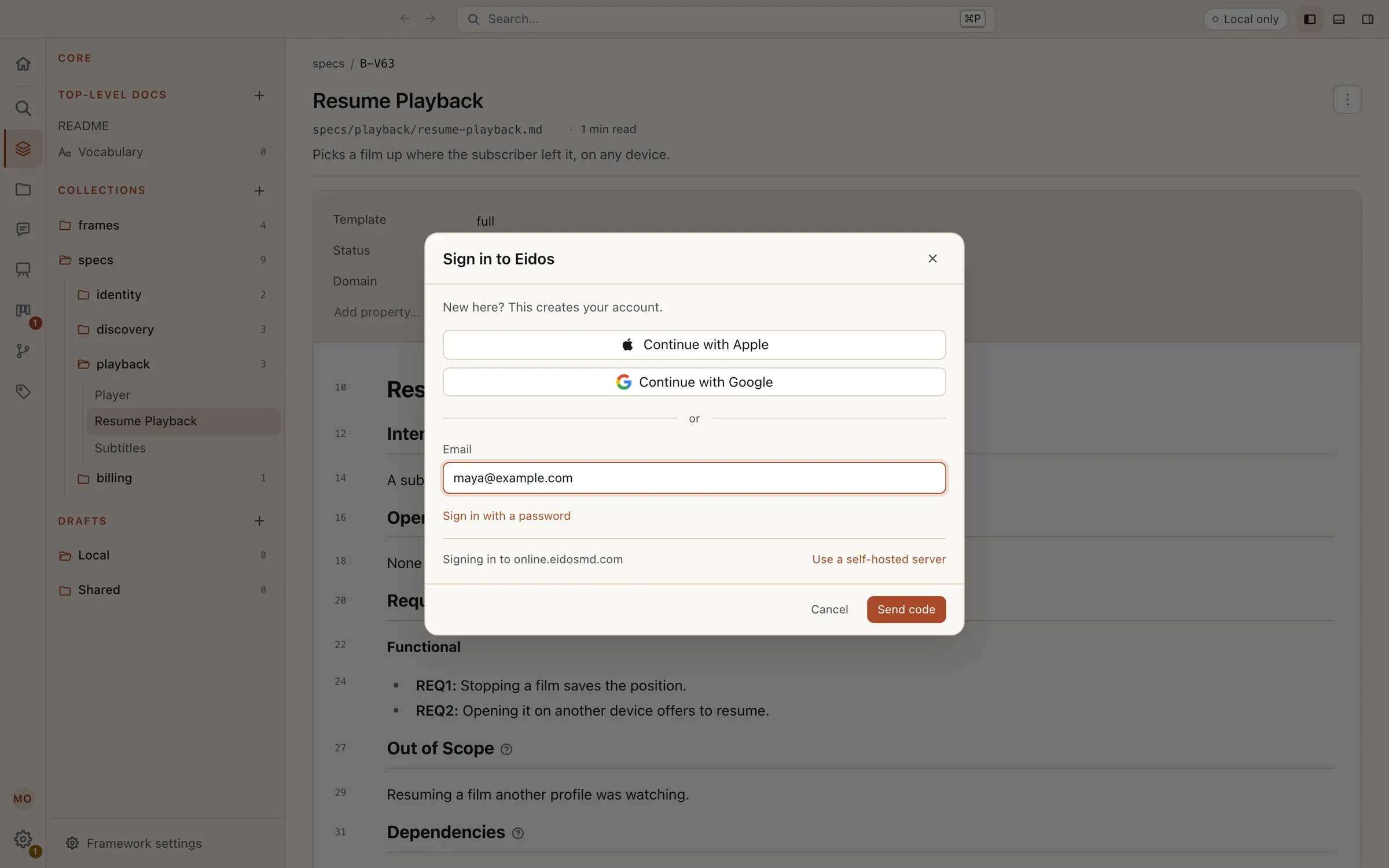
Type your email and Send code. A six-digit code arrives by email; type it in and Sign in. A code works once, for ten minutes, and Send a new code is offered after thirty seconds. There is no separate sign-up, and making an account never asks for a password: the first sign-in with an address, or with an Apple or Google account, creates it. A wrong code, an expired one, and an address with no account all read the same, so the dialog never says whether an address has an account.
The dialog has two other ways in:
- Continue with Apple and Continue with Google, above the email field, finish in your system browser, never inside the app. While you sign in there the dialog says Continue in your browser, with Open again and Sign in another way, and the app comes back to the front signed in. An address used with Apple or Google and by email is one account.
- Sign in with a password, below the email field, is for an account that has added a password on its site. Forgot your password? emails a code that, with a new password, replaces the old one, and Email me a code instead goes back to the code. A wrong password and an address with no password read the same.
With two-step sign-in on, every way in then asks for the code from your authenticator app, or a backup code.
The dialog says where it signs in (Signing in to online.eidosmd.com). Use a self-hosted server takes your team’s own server instead; its accounts are separate from Eidos online’s, and its dialog offers only the ways in its team turned on. See Self-hosting.
Your name, username, and picture, a password, and two-step sign-in are set on your account’s own site, account.eidosmd.com. Until you set a name, the others in a project see you by your email.
Your account
Section titled “Your account”Signed in, the foot of the Activity Bar is your account’s avatar. Its menu says who is signed in and their plan, a seat someone invites you to with Accept, and Account…, Plan and billing, Add an account, and Sign out. The app holds several accounts at once, a work and a personal one, or accounts on different servers, each signed in on its own. A synced project belongs to the account that joined it.
Account… opens Settings → Account: each account signed in on this device, with Sign out, and under Devices every device the account is signed in on, each named for its machine with when it was last active. Sign out beside another device ends its session from here; that device stops syncing until someone signs in on it again. For an account on Eidos online, Manage account opens each section of its site: Profile, Security, Devices, Plan and billing, and Support.
An account is active on three devices at once. Signing in on a fourth names the three, with when each was last active, and asks which to sign out; Cancel leaves the fourth signed out. The device signed out keeps its folder and the changes waiting on it, says Sync paused · signed out from another device, and sends them once it signs in again. The agents and commands on a device work through its sign-in and never count as devices of their own.
Sign out ends this device’s session only. Synced folders stay as they are and become local only, and your settings stay as they were last synced.
Settings that follow you
Section titled “Settings that follow you”Signed in, your own settings are kept with your account and are the same on every machine you sign in on, whether or not any project is online: Preferences, Appearance and your themes, Hot keys, and your Me (your name, email, and how you like to be helped). A setting changed on one machine reaches the others the next time each is online, and the later change to a setting wins.
What belongs to one machine never follows: the window’s size and place, the folders your projects live in, and the Terminal’s shell.
The first sign-in on a machine that already has settings of its own asks once: Use my account’s, or Keep this device’s. It never merges the two without asking. Sync my settings, on the Account page, turns this off for the account and leaves each machine’s settings as they are. With several accounts signed in, the machine follows the first one’s settings.